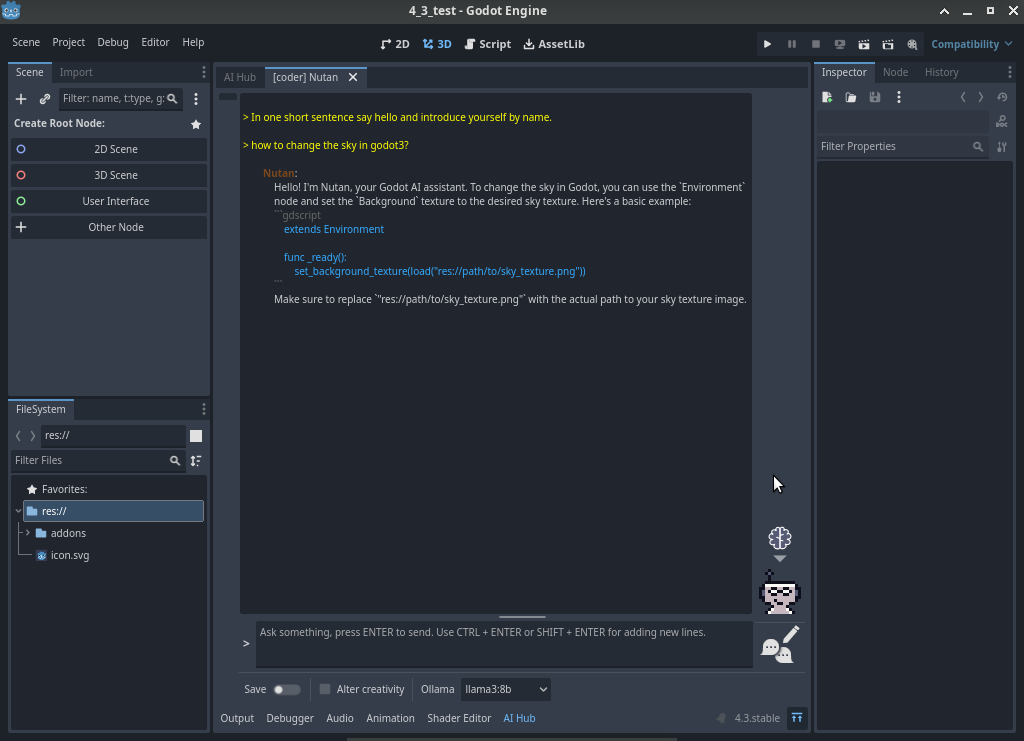
While I am, as I have said, not a big fan of AI, I have been doing my due diligence to learn about it in the event that the need to use it should arise. Again, I clarify "need" not as a lighthearted, "I need to know this or that, so I'll just ask AI...", but rather a need such as a work requirement. I hope this will be my final article in this series about AI, at least for the time being.
Being in the IT field, and a somewhat technical person, I started out with one overarching goal in learning about AI: how can I self host an AI instance that I can integrate with some other program. While I may not be a fan of AI, I have learned quite a few technical things along the way, and I'm glad that I set out on this "adventure". Today's post is the latter end of that trek, mainly the technical ability to use or integrate AI into some other program.
Of course, as you recall from my first post [1], I am self hosting various AI models, such as llama3.2 and llama3.3 with Ollama, the python based open source interface. In my second post [2], I made a note about how to use the API of Ollama to send requests and receive the reply. But I wanted to make sure that I understood not just the API interface, or how to host my own AI models, but how to actually integrate or use it in another program or app for daily workflow, rather than just as a chat tool. Could I feed it code and have it spit something (however untrustworthy) back out to me?
First, I wanted to know how to access my self hosted models from another computer. For security reasons, I didn't want to open up my computer to the internet, but did want to prove I could do it within my own home network. By default, Ollama actually only accepts or listens to requests on the local loopback network, lo, on the loopback address, 127.0.0.1, port 11434. Trying to access it from another computer in the network would just get you an access denied response:
$ curl http://192.168.5.251:11434/api/tags
curl: (7) Failed to connect to 192.168.5.251 port 11434 after 61 ms: Couldn't connect to server
In this request, I am requesting the tags, or essentially list, of available models. Because I am requesting this information from another computer over the local network, I receive the "Failed to connect" error. If I run this command on the machine hosting the models, I get the proper response, which looks like this:
{"models":[{"name":"llama3:latest","model":"llama3:latest","modified_at":"2026-08-29T06:22:48.871118746-08:00","size":4661224676,"digest":"365c0bd3c000a25d28ddbf732fe1c6add414de7275464c4e4d1c3b5fcb5d8ad1","details":{"parent_model":"","format":"gguf","family":"llama","families":["llama"],"parameter_size":"8.0B","quantization_level":"Q4_0","context_length":8192,"embedding_length":4096},"capabilities":["completion"]}...........EDITED FOR BREVITY..........
So, how can I get that to work over the local network? There are two ways that I know of. The first is to make a few routing rules for the server computer to bind incoming traffic on the network to the loopback address. I tried this:
sudo iptables -t nat -A PREROUTING -i eno1 -p tcp --dport 11434 -j DNAT --to-destination 127.0.0.1:11434
sudo iptables -A FORWARD -i eno1 -o lo -p tcp --dport 11434 -d 127.0.0.1 -j ACCEPT
sudo iptables -t nat -A POSTROUTING -o lo -j MASQUERADE
This almost worked, but not quite. For some reason, this worked to route traffic from the LAN to the loopback device, allowing the server to accept requests over the local network and pass them to the local loopback interface and give the request to Ollama. Unfortunately, it didn't work to route the reply back to the computer making the request. I'll be honest, I'm not sure why. I must be getting rusty in my iptable routing, and looking at various examples online didn't seem to shed light on my problem. But in theory, this, or something close, should work.
The second method to expose Ollama to the local network is to change the environment variable for "OLLAMA_HOST" to be 0.0.0.0:11434, meaning to listen to anybody on that port, not just local loopback. So, I set the variable:
export OLLAMA_HOST=0.0.0.0:11434
And I tried to run Ollama. But I still got the denied errors, and Ollama completely ignored this export. So, I set it in my system variables by editing /etc/environment to include it, making it a global system variable that is set all the time, and one which is persistent. But that didn't work either. Ollama just ignored it, again. I read around online and tried several other things, like passing it as an argument when calling Ollama, like so:
OLLAMA_HOST="0.0.0.0:11434" ollama serve
But, Ollama didn't care. It was getting to be a bit frustrating. For grins, I asked llama3 how to do this, starting with questions about which port to use, etc., but at one point it said that you don't "self host" Ollama, and then gave me a story about using port 8080, because that is the "default port for Ollama", yet the default (per Ollama's documentation)[3] is actually port 11434. Here was llama3's output:
>>> what is ollama's default port when self hosted?
When self-hosting Ollama, the default port is **8080**.

In the `ollama.config` or `ollama.json` file, the `listen_port` setting is
set to 8080 by default, which means Ollama will listen for incoming
requests on port 8080.

So, when you're hosting Ollama locally, you can access it by visiting
`http://localhost:8080` or `http://<machine_ip>:8080` (replace
`<machine_ip>` with the IP address of the machine running Ollama) in your
web browser.
So I realized that it must be different when using Ollama as a snap, and it turns out this was the case. Your Ollama environment variables are useless when you run Ollama as a snap. Once I figured that out, a little bit of searching in the documentation lead me to where I needed to go:
sudo snap set ollama host=0.0.0.0:11434
This command sets the OLLAMA_HOST variable for the snap. It would appear that the usual OLLAMA_ variables are all there, just without the OLLAMA_ prefix. You can also read them with 'snap get' instead! After setting that variable in the snap, it was now a trivial matter to test access from another local network machine:
~$ curl http://192.168.5.251:11434/api/tags
{"models":[{"name":"llama3:latest","model":"llama3:latest","modified_at":"2026-08-29T06:22:48.871118746-08:00","size":4661224676,"digest":"365c0bd3c000a25d28ddbf732fe1c6add414de7275464c4e4d1c3b5fcb5d8ad1","details":{"parent_model":"","format":"gguf","family":"llama","families":["llama"],"parameter_size":"8.0B","quantization_level":"Q4_0","context_length":8192,"embedding_length":4096},"capabilities":["completion"]},{"name":"llama3:8b","model":"llama3:8b","modified_at":"2026-08-29T06:20:44.08856588-08:00","size":4661224676,"digest":"365c0bd3c000a25d28ddbf732fe1c6add414de7275464c4e4d1c3b5fcb5d8ad1","details":{"parent_model":"","format":"gguf","family":"llama","families":["llama"],"parameter_size":"8.0B","quantization_level":"Q4_0","context_length":8192,"embedding_length":4096},"capabilities":["completion"]},{"name":"llama3.2:latest","model":"llama3.2:latest","modified_at":"2026-08-26T04:58:50.45297552-08:00","size":2019393189,"digest":"a80c4f17acd55265feec403c7aef86be0c25983ab279d83f3bcd3abbcb5b8b72","details":{"parent_model":"","format":"gguf","family":"llama","families":["llama"],"parameter_size":"3.2B","quantization_level":"Q4_K_M","context_length":131072,"embedding_length":3072},"capabilities":["completion","tools"]}]}
Great! Now I could access my AI models from any computer within my local network! I did do some testing from external networks to make sure I couldn't reach it from outside, which firewall rules on my router do stop. Satisfied with that, I then set about to the real task, attaching it to some app or program to "integrate" it into a workflow. One program I use a bit is Godot, the game engine which has it's own IDE, so I decided to try that.
Turns out it was pretty easy. In Godot 3x and 4x, you can use the Godot Copilot Plugin [4], which allows your usual Godot interface to have an extra tab where you can integrate an AI, but it wouldn't let you choose a self hosted instance. In Godot 4.3+, however, you could use the Godot AI Assistant Hub plugin, of which our title picture above shows how you can integrate your own locally hosted AI, asking it questions and showing it highlighted code within the development environment.
Feeling that the goal is now met, I can now move on to other things. While I don't intend to use AI personally, I did learn a lot by trying to self host, network, and integrate one into a "daily workflow" of something that I could use, even if I don't intend to actually do it.
Linux - keep it simple.
[1] https://alaskalinuxuser3.ddns.net/Running%20a%20local%20AI%20model%20with%20Ollama%20and%20AI%20pitfalls.html [2] https://alaskalinuxuser3.ddns.net/Using%20a%20local%20AI%20model%20with%20API%20and%20further%20response%20to%20API%20pitfalls.html [3] https://docs.ollama.com/faq [4] https://github.com/minosvasilias/godot-copilot/tree/3.x [5] https://github.com/FlamxGames/godot-ai-assistant-hub